

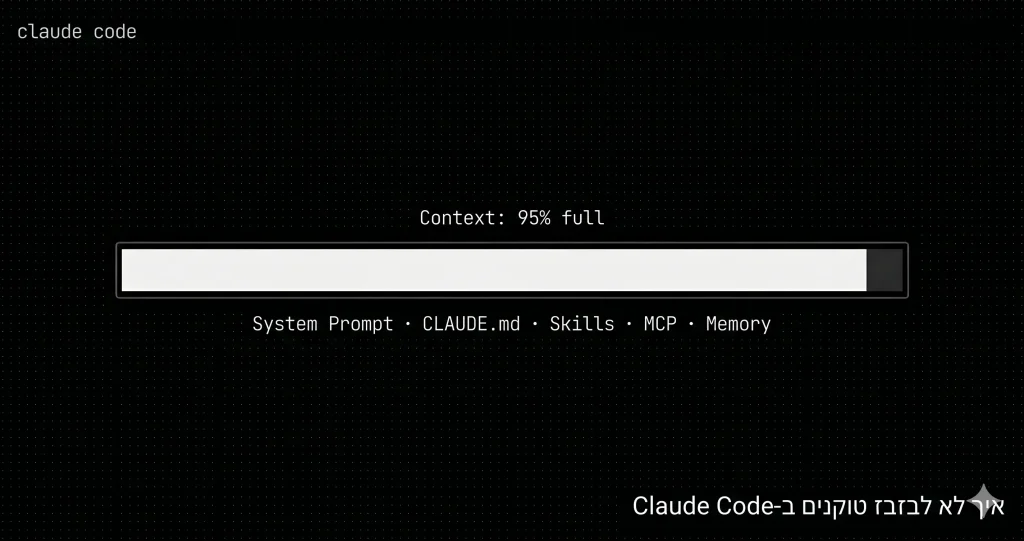
In Brief
The Claude Code context window is like short-term memory — expensive, limited, and fills up fast. Managing it properly is critical for getting good results:
- CLAUDE.md – Keep it short, focused, and under 200 lines
- Model and work mode – Sonnet for most tasks, Plan Mode only for complex features
- Storage levels – Any setting that serves a single project gets saved at the project level
- Skills – Only globally install what’s relevant to every project
- Permissions – Use general rules instead of specific entries
- MCP – Global only for servers used everywhere
The result: Claude “understands” the context better, without being overloaded with dozens of settings it has no use for.
Wait, What Even Is a Token?
Before we talk about waste, let’s understand how this works.
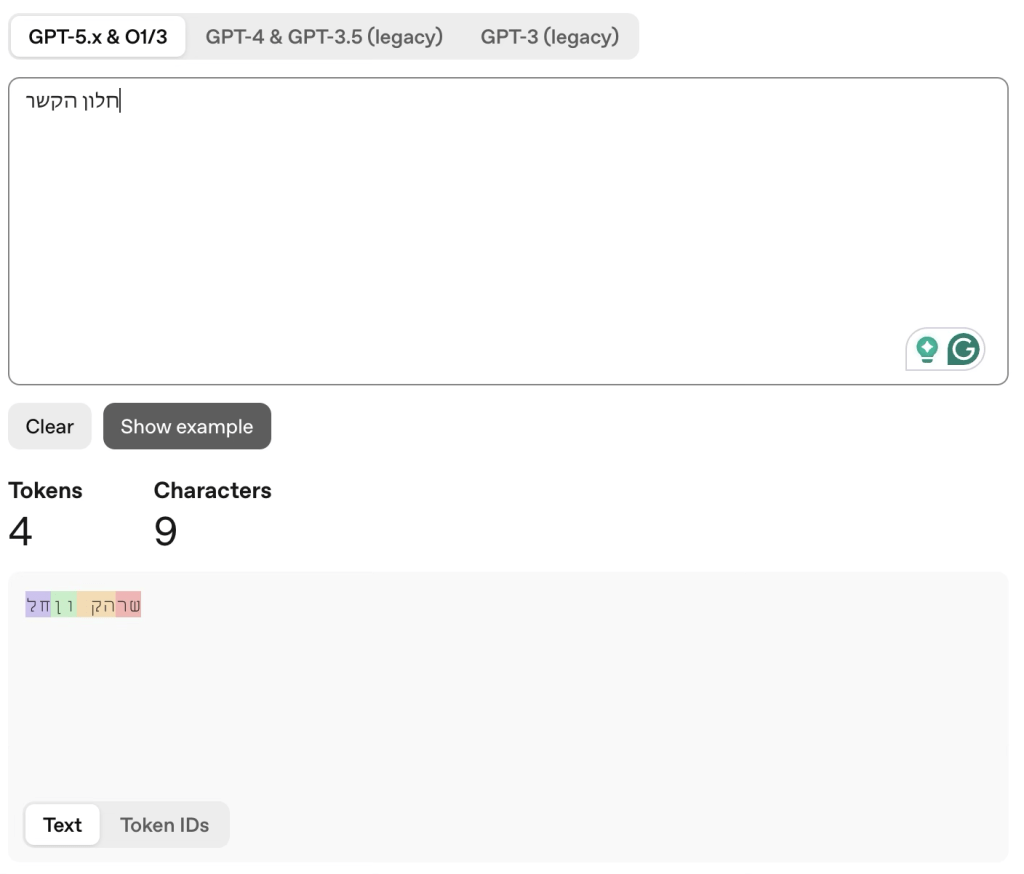
When we send a message to Claude, the text we write isn’t transmitted as words — it’s broken down into small pieces called tokens. The text “context window,” for example, breaks down into 2 tokens in English, but in Hebrew it breaks into 4 tokens, as you can see in the images I’ve attached. You can try it yourself on this site.
Here’s an explanatory video I put together on the topic 👇
When we work with Claude Code and write a prompt, it doesn’t only read what we wrote. Before it reads our message, system instructions, conversation history, tool descriptions, configuration files, and more are automatically injected — and all of it counts toward the token total. The important thing to know is that language models have a limit on their “context window,” and as it fills up, the quality of results we get degrades. Incidentally, every model has token limits at the conversation level, as well as daily and weekly usage limits. If we don’t manage the context window properly, we’ll find ourselves hitting usage limits very quickly.
What Gets Loaded Into the Context Window Before We’ve Typed a Single Character?
When we open a new conversation in Claude Code, dozens of components are automatically loaded into the context window even if we didn’t ask for them.
| Component | Approximate Size |
|---|---|
| Claude Code system instructions | ~4,000 tokens |
| List of available tools (MCP, built-in tools) | ~300–500 tokens |
| Project CLAUDE.md file | Variable (typically 1,500–3,000) |
| Memory from previous conversations | Up to ~25KB per session |
| Git status snapshot | ~300 tokens |
| Installed Skills descriptions | ~50–100 tokens per Skill |
| Permissions settings (settings.json) | Variable |
For example, if we’ve installed global skills or MCP, every conversation will start with skill descriptions and all MCP commands loaded in — even if we’re working on a project that has nothing to do with any of them. If you want to see what this looks like, type /context and you’ll get something like this 👇
$ /context
Estimated usage by category
Data from a real Claude Code /context output
Where Do the Main Tokens Come From?
1. Global Skills
Skills files are instruction files (SKILL.md) that teach Claude how to work in a specific domain. Every skill installed globally (~/.claude/skills/) loads its description (Frontmatter) into every conversation, in every project — even if it’s completely irrelevant.
So if we’re using skills specific to one project, we place them at the project level rather than in the global folder.
2. Plugins
Plugins (such as Vercel, Superpowers) contain dozens of skills. Each sub-skill injects a description line into the skills list for every conversation, even if our project doesn’t use anything from that plugin.
Think of it like a toolbox packed with tools for every conceivable situation — like an electrician hauling around a saw. Odds are they won’t use the saw, and it just weighs down the toolbox.
3. The Settings File That Slowly Bloats
Claude Code saves every “approval” we’ve granted it in a settings file (settings.json). Every time we authorize it to perform a specific action, it saves that entry separately. After a few months, this file fills up with hundreds of entries that take up space in the context window. These entries can be replaced with a few simple general rules.
4. Subagents
When we ask Claude to research a broad topic, plan a complex feature, or perform several tasks in parallel — it spins up subagents. Each subagent is an independent new conversation with the full system prompt loaded from scratch, including all settings, memory, and skill descriptions. What sounds like a simple research task can consume an enormous number of tokens.
| Level | What It Means in Practice | Loaded In… |
|---|---|---|
| Global | Settings that apply to all projects | Every conversation, in every project |
| Project | Settings specific to this project | Only when working on this project |
| Local | Personal settings that don’t go into Git | This project only, not shared with the team |
6 Principles for a Lean Context Window
Principle 1 – Keep the Instructions File Short and Focused
When we start working with Claude Code on a project, we can create a CLAUDE.md file — an instructions file that loads into every conversation and tells Claude what’s important to know about our project. It’s like writing an onboarding brief for a new employee before you start working together.
The problem is that this file is loaded in full into every conversation, even if we’re working on something that has nothing to do with most of the instructions we wrote. According to Anthropic’s best practices, this file should contain a maximum of 200 lines.
What to include:
- Basic project run commands
- Architectural decisions that can’t be inferred directly from the code
- Working conventions that Claude should always keep in mind
What not to include:
- History of old decisions
- Explanations of well-known technologies that Claude already knows
- Documentation that already exists in the code itself
Advanced tip: You can split rules into separate files inside a .claude/rules/ directory and specify which part of the project each one applies to — so they’re only loaded when working on that part, not all the time.
Principle 2 – Plan and Execute With the Right Model
Claude Code offers several available models that differ in cost and reasoning power. Sonnet handles most coding tasks well and costs less. Opus is stronger for tasks requiring deep, multi-step planning, but it also consumes more tokens. So plan with Opus and execute with Sonnet. You can switch models mid-session using the /model command, or set a default in /config.
When Plan Mode is activated, Claude Code tends to spin up multiple parallel research agents, each with a full system prompt loaded from scratch. The rule of thumb: use Plan Mode for features that touch many different parts of the project. For bug fixes and small changes, work directly without a plan.
The same principle applies to conversations in general: one conversation = one goal. If you started a conversation fixing a bug, then shifted to a design change, then to documentation, the conversation contains a huge amount of historical information that gets sent again every time and clogs the context window. So when we finish a goal, we run /clear conversation and open a new one.
Principle 3 – Understand Where Everything Gets Saved
In Claude Code there are three storage levels for almost every setting. According to the official documentation:
This applies to skills, settings, memory, and MCP servers. The simple rule: if something is relevant to only one project, save it at the project level — not globally.
Principle 4 – Skills Belong to the Project, Not the World
According to the documentation, global skills load their descriptions into every conversation — even when they have nothing to do with what we’re currently doing.
Think of it like apps running in the background on your phone: they all drain the battery, even if you never opened them. Global skills work exactly the same way.
The right distribution: skills you use across every project — save globally. Any skill relevant to only one project — save only in that project’s .claude folder.
Principle 5 – Use General Permissions, Not Specific Ones
When you grant Claude Code permission to perform a specific action, it saves it as a specific entry. The official documentation explains that you can use general rules that cover an entire family of actions at once — instead of accumulating hundreds of specific entries.
Rather than approving each action individually and building up a long list, you can approve an entire category of similar actions with a single rule. This significantly shortens the settings file and prevents future accumulation.
Principle 6 – Audit Which MCP Tools You Actually Use
MCP servers are connections to external services that add capabilities to Claude — connecting it to Notion, GitHub, databases, and so on. Every MCP server configured globally is loaded into every conversation, even if it has nothing to do with what we’re doing.
Before keeping a connection global, it’s worth asking: “How many times did we actually use this in the past month?” If a service doesn’t touch your current projects — configure it only at the relevant project level.
Additional tip: When a command-line tool (CLI) is available for the same service, it’s better to use it directly. CLI tools add nothing to the context window, unlike MCP.
Additional Tips From the Official Documentation
Use the /context command to display current token usage. You can also configure the status line — for those working in the Terminal — to show this information at all times.
When you want to start fresh, use the /clear conversation command — this clears the context window.
When using /compact with custom instructions, you can tell Claude what to preserve when it summarizes the conversation. You can also set permanent compaction instructions directly in CLAUDE.md.
If Claude is heading in the wrong direction, press Escape immediately to interrupt it, and use /rewind (or double-press Escape) to go back to the previous point, where you can choose whether to restore the code, the conversation, or both.
And most importantly — write specific prompts and save a lot of tokens. When you make a vague request, it causes Claude to perform a broad scan. Make a point of writing focused requests that specify exactly what needs to change and where, so Claude only needs to read the relevant files.
Quick Diagnostic Table
$ diagnose –context-issues
Quick diagnostic table for context window management
If you have tips of your own, feel free to share them with me…